Multiplayer and Disconnection Issues#
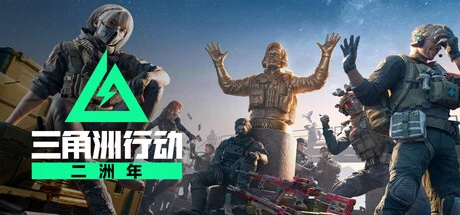
Delta Force is a free-to-play online shooter spanning PC, console, and mobile. Its multiplayer experience is decided by three puzzle pieces: the cross-platform matchmaking mechanism, account and server regions, and your local network environment. Disconnects rarely have a single cause either — this page turns the multiplayer and disconnect facts verified as of 2026-10-15 into a directly actionable troubleshooting path: first identify which link “can’t get in” is stuck on, then start fixing.
1. Cross-Platform Multiplayer Today#
PC, PS5, and Xbox Series X|S are cross-play compatible and share a matchmaking pool three ways; Steam and Epic players share the same PC pool regardless of launcher. Mobile queues separately and only shares account progress across platforms.
Platform Compatibility Matrix#
| Platform Combination | Status | Notes |
|---|---|---|
| PC (Steam, Epic, official client) and PS5 | Compatible | All three share the same matchmaking pool |
| PC (Steam, Epic, official client) and Xbox Series X|S | Compatible | All three share the same matchmaking pool |
| PS5 and Xbox Series X|S | Compatible | Consoles queue in the same pool |
| Steam and Epic | Same pool | PC players are not split by launcher; matchmaking ignores the channel |
| Mobile vs. PC and console | No cross-play battles | Mobile has its own matchmaking pool but shares account progress |
There is a gap between official wording and player intuition: the official marketing phrase “fully cross-play across PlayStation, PC, and mobile” describes the overall ecosystem — shared progress plus partial cross-play between platforms — while mobile players actually queue separately. Shared progress does not mean shared lobbies; that is the single most important sentence for understanding this game’s multiplayer structure.
Searching around, you will also run into two outdated claims: an old table on one guide site marks cross-platform as “unsupported”, and a game booster blog calls Warfare 24v24 — both contradict the 64-player online and 32v32 Warfare marked on the official store page. Old multiplayer articles survive online for a long time; defer to the official store page and official social media.
Cross-Platform Progress and Account Binding#
Sharing progress across three platforms has one prerequisite: a bound account. Global server players use a Level Infinite Pass account (bindable to a Steam account); CN server players use a real-name QQ or WeChat account. If progress “disappears” after switching platforms or launchers, in most cases you logged into the other, unlinked account system rather than losing data — verify account ownership before debugging the network.
How to Disable Crossplay on Console, and What It Costs#
PS5 offers an in-game crossplay toggle; on Xbox, part of this is managed through system-level multiplayer privacy permissions; PC has no “console-only matchmaking” option. Disabling crossplay means fewer available opponents and longer queue times, especially noticeable for console players during off-peak hours. Think it through before switching it off.
2. Five Verified Causes of Disconnects#
As of 2026-10-15, the verified disconnect causes total five: unstable local network, server maintenance or peak congestion, firewall and antivirus interference, corrupted client files, and improper router NAT settings.
| # | Cause | Typical Signs and Diagnosis | Fix Direction |
|---|---|---|---|
| 1 | Unstable local network, high latency and packet loss | Teleporting characters, action rollbacks, spiking latency readouts in matches | Steps 1 to 2 in Section 3 of this page |
| 2 | Server maintenance or peak-load congestion | Maintenance notice on the login screen; locked out for a whole period rather than sporadically in one match | Announcement channels in Section 6 of this page |
| 3 | Firewall and antivirus interference | Blocked at launch or login; security software pop-ups alongside | Whitelisting, see below |
| 4 | Corrupted or missing client files | File-loading type errors; first-launch anomalies after major updates | Platform file verification (paths below) |
| 5 | Improper router NAT and port settings | Repeated matchmaking failures; only some online features work | Console static IP and port forwarding |
The “security software interference” category has a hard confirmed case for this game worth calling out separately: a resolved Steam Community case from late January 2025 confirmed that a Windows security program’s “interactive mode” blocking the kernel-level anti-cheat ACE (Anti-Cheat Expert) service causes a black screen at launch; there are also reports of Defender’s ransomware protection blocking ACE and causing launch failures. This game requires ACE, and conflicts between security software and it are a frequent cause of “my network is clearly fine but I can’t get in”. The fix is adjusting how your security software treats the ACE service, not reinstalling the game over and over.
For corrupted files, the fix path is platform verification — no full client re-download needed:
- Steam: right-click the game in your Library → Properties → Installed Files → Verify integrity of game files.
- Epic: Library → Manage → Verify.
3. Step-by-Step Fixes for Disconnects and Connection Failures#
Switch to a wired connection and reboot the router first, then work through console port forwarding and public DNS, then handle antivirus interference with the anti-cheat component, and finally reboot the device and verify game file integrity.
The verified order, cheapest first:
- Switch to a wired connection. Warfare puts 64 players in one match, and wireless jitter is magnified noticeably in large battles.
- Reboot your router and log into the game only after it fully comes back up.
- Console players (PS5, Xbox) should set a static IP for the console and configure port forwarding on the router.
- Change the device’s DNS resolver to a public one (8.8.8.8 or 1.1.1.1).
- In your firewall and antivirus, whitelist this game’s client and the ACE anti-cheat component — per the confirmed community case in Section 2, check Defender’s ransomware protection and your security software’s interactive mode first.
- Fully close the game, reboot the device, then log in again. This game’s kernel-level anti-cheat loads with the system itself, so a full PC or console reboot beats just relaunching the game.
- Update the operating system and the game client. Since Season S11 the game runs on Unreal Engine 5, and keeping the client current is a precondition for normal multiplayer.
When to Suspect a Router NAT Problem#
This class of issue can be predicted from symptoms alone: web browsing is fine but matchmaking keeps failing; only some online features work; on the same network a console fails to connect while the PC is fine. If any one of the three hits, it is worth checking your NAT type — the PS5 and Xbox system settings include network tests; if the type is restricted, follow step 3 above: set a static IP for the console, then set up port forwarding.
One clarification: this game’s required named port numbers were not verified through official statements as of the check date; treat the official support documentation as the source for port lists. The above are general fixes; for Delta Force-specific issues, official announcements prevail.
4. What to Do About Matchmaking Failed#
The official guide’s order: check official announcements first, then change the matchmaking region, then reboot the device, then check firewall and DNS. The official technical guide also splits connection issues into three scenarios.
Following that order avoids wasting effort treating a server problem as your own network problem:
- Check official announcements first to confirm whether maintenance or a regional outage is underway.
- Change the matchmaking region — both overcrowded and underpopulated regions cause matchmaking timeouts.
- Reboot the device and retry.
- If it still fails, return to Section 3 and check firewall and DNS.
The official technical support guide has a dedicated Connection & Matchmaking chapter splitting issues into “cannot connect”, “disconnect mid-match”, and “excessive matchmaking wait”, each with its own path to customer support — self-categorize before filing a report and you can save a round trip.
To quickly judge “is the server down”, the third-party monitors ismygamedown.com and outagescope.com aggregate player reports: on the check date both sites showed services running normally, with only single-digit reports in 24 hours, concentrated in login and matchmaking. Single-digit reports mean the problem is most likely on your side; talk server failure only when the report count spikes.
One more reminder: no public version of an official connection error-code table was verified this time; treat circulating “disconnect error code charts” with caution, and report errors through the official ticket channel — that is the safest route.
5. Do You Need a Game Booster, and How to Choose#
A booster is not required by the game; direct connection is the mainstream play on the CN server, and it is cross-region Global server players who are commonly advised to use one. UU, Xunyou, Qiyou, and GearUP all offer booster service for this title, but most related tutorials are vendor advertorials.
| Situation | Advice | Rationale |
|---|---|---|
| CN account, direct CN connection | Usually no booster needed | Direct connection is mainstream; the game does not require one |
| Global player connecting cross-region | Commonly advised | Cross-region routes show clearly higher latency and packet loss than local ones |
| Repeated disconnects at peak hours | Run Section 3’s free checks first; reconsider if nothing improves | Disconnects are not always a route issue; rule out server and local factors first |
All four vendors’ information comes from the booster vendors’ own tutorials and blogs, with built-in marketing bias — that must be said first. Practical advice: run Section 3’s free checks once first; before paying, use each vendor’s free trial time to measure whether this game’s latency and packet loss actually improve, then decide on a subscription — boosters clearly pay off for cross-region play, while gains on direct CN connection vary by route. These are general selection guidelines; Delta Force’s actual booster results vary by route and time of day — follow official announcements and your own tests.
6. CN Server vs. Global: Server Regions and Status Checks#
The PC version splits into the CN server and the Global server by account region; the Global server requires a Level Infinite Pass account. For server status, check the official support page and official social media first, then cross-confirm with third-party monitors.
The region split itself creates another possible answer to “network is fine but I can’t get in”: the wrong account system. Global requires a Level Infinite Pass account; the CN server uses real-name QQ or WeChat accounts, and the two systems are not interchangeable. Before logging in on a new device or launcher, first confirm which side you are logging into.
Official announcement and status channels:
| Channel | What You Can Find |
|---|---|
| Official support site (including the server regions page) | Server region notes, maintenance notices, and technical support guides |
| X account @DeltaForce_Game | Downtime maintenance and sudden outage announcements |
| Official Discord | Community-side status sharing and support entry |
| Game login screen | Maintenance and update notices before login |
Two additions: first, no fixed routine maintenance schedule has been published (none found as of the check date), so do not trust claims like “servers go down every week at X o’clock” — announcement channels are the source of truth; second, third-party monitors only reflect player reports and work best cross-checked against official announcements, not as a basis for conclusions on their own.
7. Player Counts and Disconnect Impact by Mode#
Warfare runs 32v32 with 64 players total; Operations squads max at 3; the Black Hawk Down campaign is 4-player co-op. Different match sizes mean different disconnect impacts and recovery thinking.
| Mode | Player Cap | Disconnect Impact and Notes |
|---|---|---|
| Warfare | 32v32 (64 players) | Missing players directly hurt the attack-defense rhythm of a 64-player match; the PlayStation store page marks 64-player online |
| Operations | Squads max 3 | Losing a member changes extraction decisions in loot-fight-extract; in-raid loot risk ties directly to squad state |
| Black Hawk Down campaign | 4-player co-op | All modes require a constant connection; disconnects interrupt co-op progress |
Mode mechanics decide where disconnect costs land: Warfare has the most players and the highest demand for a continuously stable connection; Operations squads are small, so connection stability within the extraction window matters more — see Extraction Points and the Loot-Fight-Extract Flow for extraction rules and Warfare Mechanics and Vehicles for large-battle mechanics. Specific rules for matches and loot after reconnecting from a disconnect follow in-game behavior.
Related Guides#
- Beginner Guide and Getting Started: from-zero mode selection and progression — sort out account and platform misconceptions before talking network.
- Platform Differences, Settings Optimization, and FAQ: three-platform comparison and performance tuning, complementing this page’s multiplayer troubleshooting.
- Warfare Mechanics and Vehicles: sub-modes, vehicles, and battlefield support in the 32v32 large battle.
- Game Overview and Lore: platform expansion timeline and the game’s positioning — start here to understand the three-platform structure.
This page was fact-checked on 2026-10-15. Server status, season cadence, and platform policies change with versions; official announcements prevail.
— Long Zhui Ri, NTGame Editorial