Palworld Controls & Key Bindings#
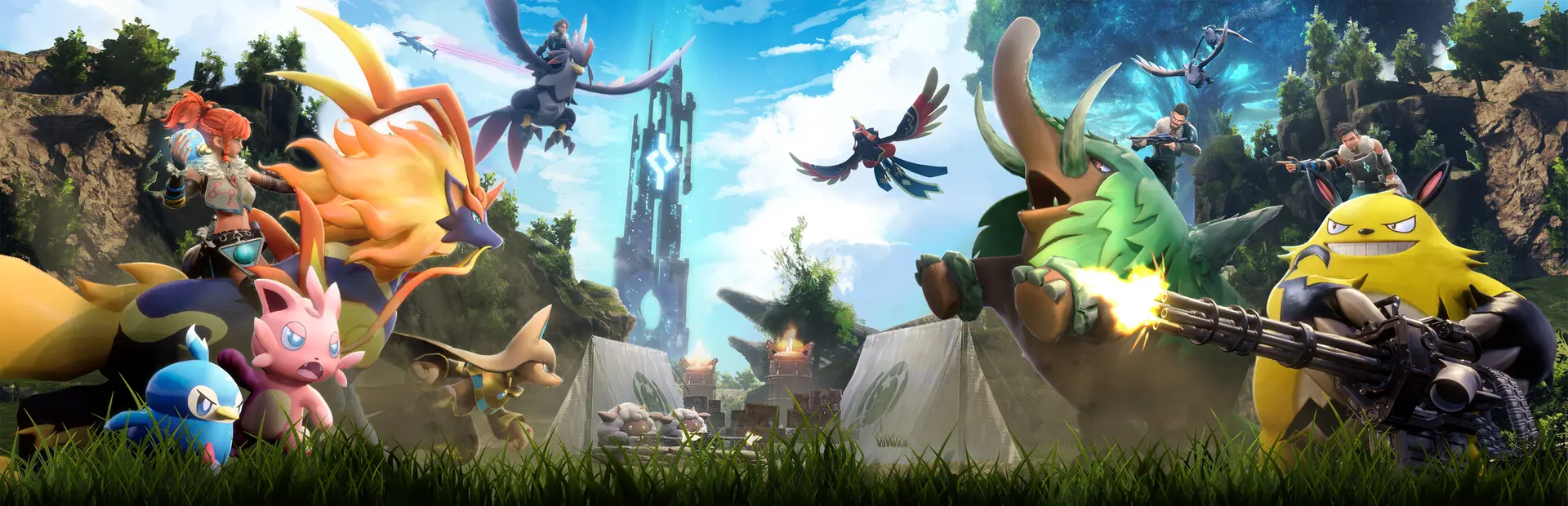
Palworld launched in early access on January 19, 2024, and shipped its 1.0 release on July 10, 2026. What makes this control scheme special: one player simultaneously carries five action families — movement, combat, capture, building, and riding — and “throwing” alone has two entirely different keys: throwing a Pal Sphere to catch a Pal, versus summoning and throwing your own Pal. The keys sit side by side and do completely different jobs, which is exactly where new players mix them up. This page gives the default keyboard-mouse and controller binding tables (organized from the official controls documentation), then explains the input-semantics changes brought by the 1.0 combat rework.
One premise first: everything below is the default layout. The game supports full key rebinding, and anything that feels wrong can be changed under Options → key configuration. Controller names use Xbox labels; on a PlayStation 5 pad the mapping is A → Cross, B → Circle, X → Square, Y → Triangle, with shoulder buttons and triggers mapped as L1, R1, L2, R2.
Default Keyboard and Mouse Bindings#
The table below is the default KB&M mapping. Pay special attention: “dash” and “dash-dodge” are two keys and two actions — in the early-access era, Ctrl’s meaning was a dodge roll; from 1.0 on, it has been replaced by the dash-dodge. The key never changed but the action did, and adapting to this is the first order of business for returning players.
| Action | Default key | Notes |
|---|---|---|
| Move | W / A / S / D | Eight-direction movement |
| Camera | Mouse | Shared by aiming and looking |
| Jump | Space | From 1.0, attacking mid-jump chains into a jump attack |
| Sprint | Hold Shift | Stamina-draining travel movement |
| Dash-dodge | Ctrl | Replaced the old roll in the 1.0 combat rework; see below |
| Crouch / slide | C | Press while standing to crouch; press while sprinting to slide |
| Attack | Left mouse button | Melee swings and gunfire; becomes mount skill 1 while riding |
| Aim | Right mouse button | Iron-sight aiming and Pal Sphere trajectory preview |
| Reload | R | Reloads firearms; from 1.0, can be done while dodging |
| Switch weapon | Mouse wheel | Cycles equipped weapons and tools |
| Throw Pal Sphere | Q | Throws the selected sphere type for a capture check |
| Summon / recall Pal | E | Deploys or recalls the party Pal from its sphere |
| Partner skill | F | The party Pal’s partner skill; also the interact key for picking up items, talking, and opening chests |
| Ride | F | Approach a summoned rideable Pal and press interact to mount; press again to dismount |
| Grab / throw Pal | V | Grab a base Pal and throw it onto a work station |
| Switch party Pal | 1 / 3 | Press 1 to cycle left, 3 to cycle right through the party |
| Switch Pal Sphere | 2 | Cycles sphere types from normal up to legendary |
| Order Pal | 4 | Commands a deployed Pal; from 1.0, you can order it to attack a specific enemy |
| Build menu | B | Enter build mode to place structures and furniture |
A few binding details that trip people up:
- The grab key moved once. Early versions shared F between grabbing Pals and the partner skill, causing constant mis-grabs; the v0.1.4.0 patch of February 2024 moved grabbing to V (and on controller from X to Y). Old guides saying “press F to grab a Pal” are still findable online — following them only fires the partner skill.
- While holding a Pal Sphere, the mouse wheel scrolls sphere types directly — no need to tap 2 repeatedly; the wheel’s default job is weapon switching, and the two contexts apply separately.
- F is a context-reused key: with a Pal deployed it fires the partner skill; near a drop or NPC it picks up and talks; near your own mount it mounts. The “keys conflict” feeling comes from here — reading the on-screen prompt instead of memorizing keys makes everything smoother.
- UI functions like the inventory, map, and tech tree also have default bindings; they are not itemized here and can all be viewed and changed in the key configuration screen. Since the v0.1.4.0 patch of February 2024, key configuration has supported mouse side buttons and the numpad, and later patches expanded the options further.
The Key 1.0 Change: Dash Replaces Roll#
This is the most impactful input change of the 1.0 combat rework and the part returning players must relearn: the dodge roll on Ctrl from the early-access era has been replaced by the dash-dodge in 1.0. The key is unchanged, but the action’s nature is completely different.
| Comparison | Early access (Ctrl) | 1.0 (same key) |
|---|---|---|
| Motion | A roll — an instant burst of displacement | A dash — sustained acceleration |
| Can you attack during it | No attacking mid-roll | You can attack mid-dash |
| Ranged weapon loop | Reloading needed a planted window | You can reload while dodging |
| Movement logic | One-shot decision, over when the roll ends | A sustained movement state you can adjust |
The character now has three easy-to-confuse movement actions — keep them straight:
- Jump: Space, vertical movement. The 1.0 combat rework gave jumping an offensive use — attacking mid-air chains into a jump attack, a follow-up that did not exist in early access.
- Sprint: hold Shift, sustained acceleration for straight-line travel; not for dodging, and it reverts to walking when stamina runs out.
- Dash-dodge: Ctrl, the combat movement tool that replaced the old roll. It is not an instant action but a movement state — you can keep attacking through it and use it to finish a reload.
“Attack during a dash, reload while dodging” turns the output window and the movement window from mutually exclusive into parallel: moving while firing becomes the default combat stance, and repositioning no longer means ceasefire. The combat rules behind this (the command system, tower boss rules, skill rebalancing) are on the combat system page; this page covers only keys and feel.
Melee controls were optimized too — attack-chain recovery is noticeably shorter than the early-access days, and combined with dashing out and back in, melee weapons no longer feel input-starved. Melee gained no new dedicated keys; the changes all live in how the existing keys respond.
Core Pal-Related Inputs#
Summoning and Commanding#
Your party holds up to five Pals. Press E to deploy the selected Pal and press it again to recall; press 1 or 3 to cycle through the party — that is the entirety of “switching partners”. A deployed Pal targets enemies autonomously by default; press 4 to open the order menu. Before 1.0, orders were only coarse attitude options; from 1.0 you can order a Pal to attack the exact enemy you designate, and singling a Pal onto summoned adds or disruptor units is a new fundamental skill in boss fights.
Throwing Pal Spheres#
The standard capture input chain: press 2 to select the sphere type → hold right mouse button to aim until the trajectory arc appears → left-click or Q to throw. Three input tips for raising success rates, straight from the official help: the lower the Pal’s HP, the easier the capture; inflicting an ailment before throwing improves odds; and throwing from behind, while the Pal is unaware, grants a bonus. Spamming throws at a healthy, facing-you Pal is not the correct usage — damage it with weapons first, then circle behind and throw.
Riding and Partner Skills#
Craft a saddle for a Pal and it becomes rideable. Mounted, key duties shift: left mouse button becomes mount skill 1, the summon key E becomes mount skill 2, and crouch C becomes mount skill 3, with the controller layout mapping accordingly. Ground, flying, and swimming mounts each have their own keys for rising, diving, and accelerating, and the framework mirrors your character’s movement — switching mounts does not require relearning, with the on-screen prompts ruling in each case.
The 1.0 Wing Pack adds flight without riding a Pal; its aerial maneuvering runs as a parallel movement line to mounted flight, with in-game prompts covering the specific controls.
Default Controller Layout#
The controller layout maps one-to-one with KB&M and is fully equivalent in function. Organized from the official controls documentation (Xbox layout, PS5 in parentheses):
| Action | Xbox | PS5 | Notes |
|---|---|---|---|
| Move | Left stick | Left stick | Click the left stick to sprint |
| Camera | Right stick | Right stick | The right stick also adjusts the throw arc when aiming |
| Jump | A | Cross | Attacking mid-air chains into a jump attack |
| Dash-dodge | B | Circle | This key was the roll in early access; a dash from 1.0 |
| Attack / mount skill 1 | RT | R2 | While holding a Pal Sphere, pressing throws it |
| Aim | LT | L2 | Iron-sight aiming and Pal Sphere trajectory preview |
| Partner skill / reload | X | Square | Covers KB&M’s F and R by context |
| Grab / put down Pal | Y | Triangle | Moved here from X in v0.1.4.0 |
| Summon / recall Pal | LB | L1 | KB&M’s E; mount skill 2 while riding |
| Throw Pal Sphere | RB | R1 | KB&M’s Q |
| Switch party Pal | D-pad left / right | D-pad left / right | Cycles the deployed party member |
| Switch Pal Sphere | D-pad down | D-pad down | Matches KB&M’s 2 |
| Order Pal | Right-stick click | Right-stick click | Matches KB&M’s 4 |
Secondary actions like crouch-sliding and weapon switching reuse keys depending on what you are holding and the scene; the on-screen prompt in the bottom-right corner rules — in controller mode the game displays icons for the current device, so there is nothing to memorize.
On platform differences: plugging a controller into PC auto-switches prompts to controller icons, and KB&M and controller can be mixed within one save; the Xbox Series X|S and PS5 versions match the table above. Menu operations like base management and the tech tree are stick-plus-confirm on a controller — slower than KB&M — while riding and light combat feel better on a pad, so switching devices by scenario is a reasonable practice.
Grabbing, Throwing, and Base-Work Inputs#
Base scenes run a separate input logic built around V (controller Y):
- Grab and throw Pals: aim at a base Pal and press V to pick it up; press again to throw, placing it directly onto the target work station as a fixed assignment; throwing a resting Pal into a work slot also cancels its rest. This is the most-used Pal-dispatch input at a base — far faster than assigning jobs one by one in the Pal terminal.
- Your own work actions: hand-crafting at a station originally required holding the work key; from the v0.1.5.0 patch, a single press keeps you working, and the old hold-mode remains switchable in settings.
- Building flow: press B for the build menu, pick a blueprint, and place it; if your base has Pals with the matching work suitability, they take over construction — you never hold any key through it.
Common Input Problems#
| Symptom | Cause | Fix |
|---|---|---|
| Partner skill fires when trying to grab a Pal | Grab moved from F to V; old habit took over | Grab with V, or Y on controller |
| Jumping or sprinting when trying to dodge | Dash-dodge, sprint, and jump keys mixed up | Per above: Ctrl dodges, Shift sprints, Space jumps |
| Pal Spheres always land at the target’s feet | Threw with Q without aiming | Hold right-click until the trajectory arc appears, then throw |
| Barely moving when overweight | Fully over encumbered means crawling speed | Return to base to unload, or drop low-value ore |
| Keys “stop working” while riding | Mounted, the attack/summon/crouch keys become mount skills | Follow the mount-skill prompts while riding; they restore on dismount |
| Controller prompts do not match the guide | The game auto-switches icons to the current input device | Follow the actual bottom-right prompts, or check the key settings |
Where This Connects#
Key bindings are just the input layer — the rules behind the actions live elsewhere: stamina budgeting for the dash-dodge and combat pacing, plus tactical uses of direct orders, are on the combat system page; the full capture-rate mechanics (level gaps, ailments, back-strike bonuses) are on the beginner’s guide and skill system pages; world settings that directly shape the play experience (XP rates, death drops) and their 1.0 changes are on the update history page. If rebinding still feels off, suspect stamina allocation before the keys themselves — sprinting, dash-dodging, sliding, and gliding all share one stamina bar, and that is the root of how this game’s control feel differs from its peers'.